Amazon RDS configuration
Connect DBConvert and DBSync to an Amazon RDS database instance.
Last updated October 19, 2026
1. Find the instance in the AWS console
Log in to AWS and open the RDS dashboard.
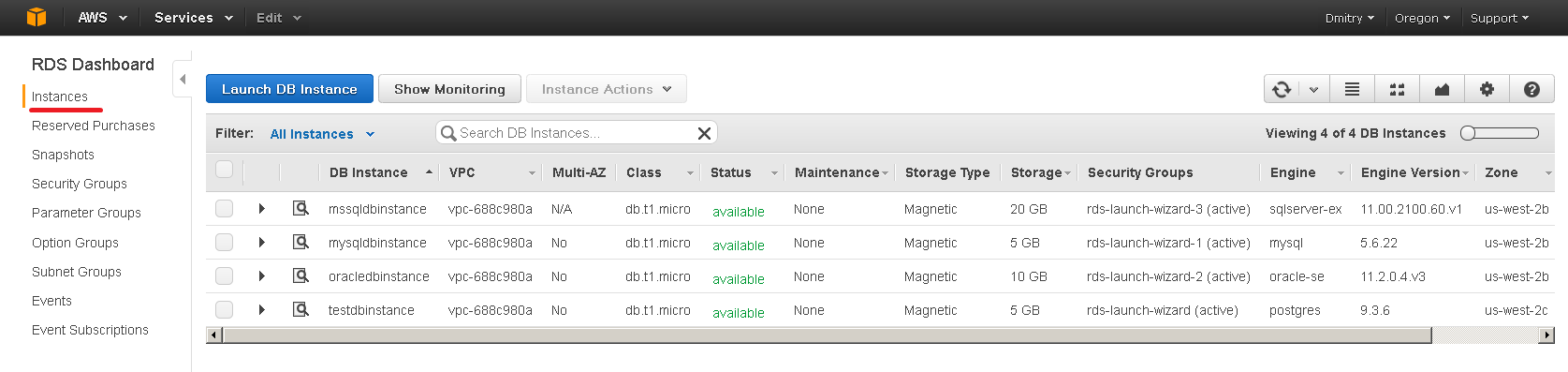
Pick Instances in the RDS sidebar to see your instances.
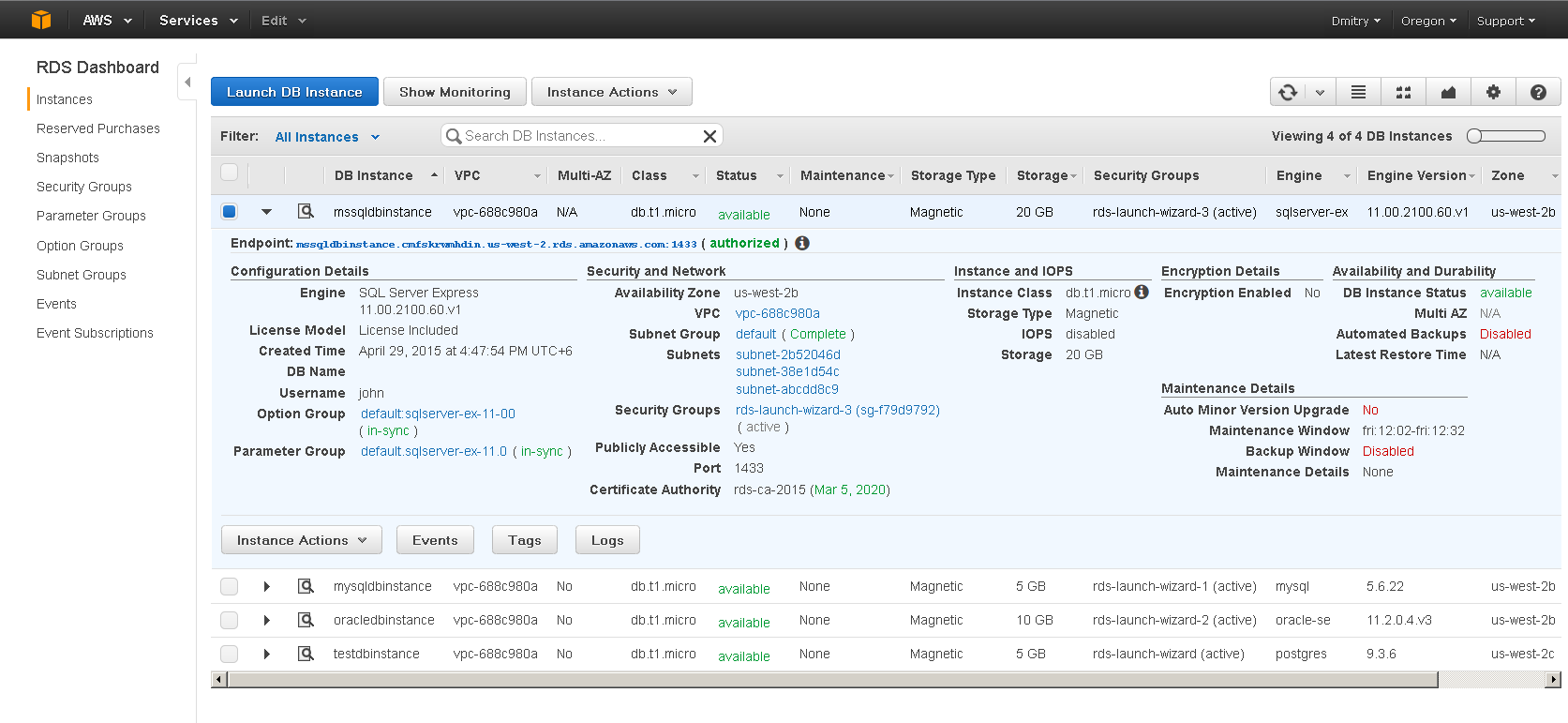
Select the instance you want to connect to.
2. Copy the endpoint
Click Endpoint to see the connection string.
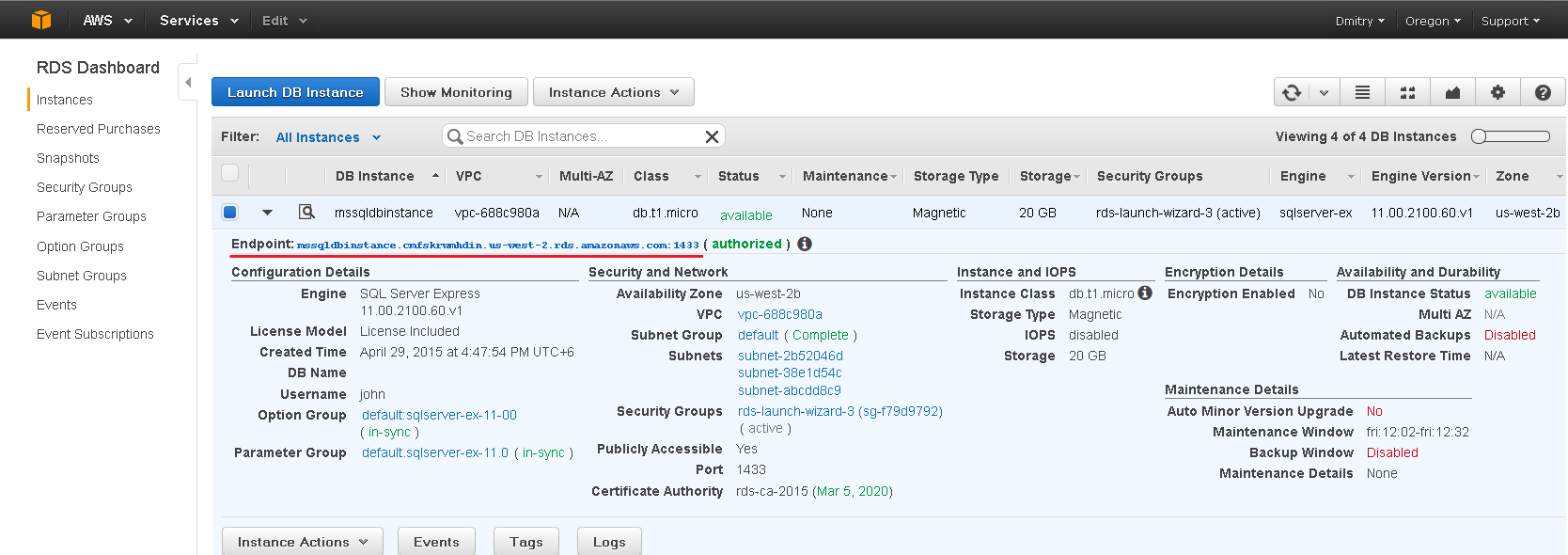
The endpoint includes the port at the end (e.g. myinstance.xxxx.region.rds.amazonaws.com:3306). Split it into hostname and port for DBConvert.
3. Fill in the DBConvert connection
In the connection dialog:
- Host - hostname only, without the port.
- Port - the port from the endpoint.
- Username and Password - the master user and password you set when creating the instance.
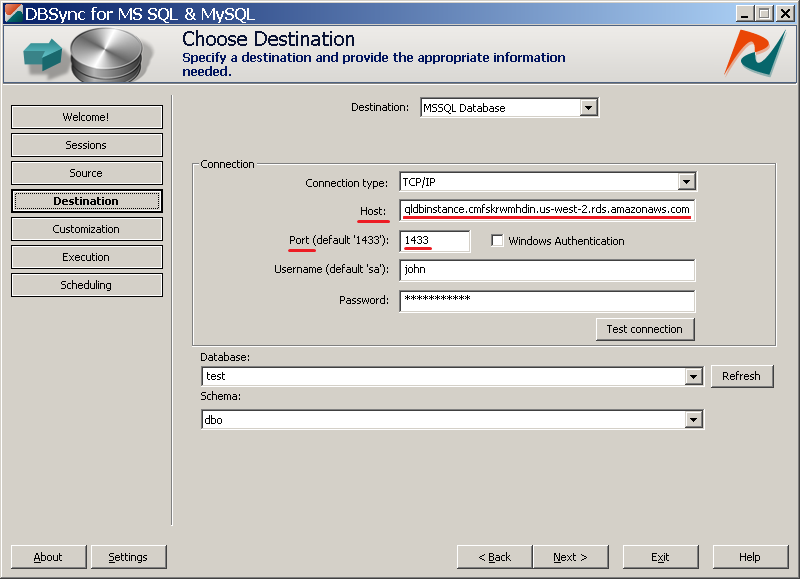
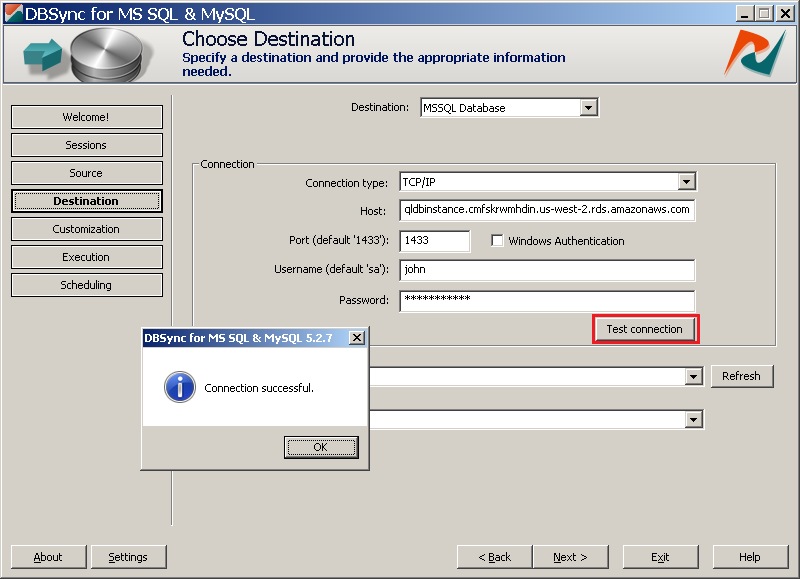
Click Connect to check the settings (Test connection in DBConvert Studio).
4. Pick the database
On Setup, pick the database in Database, or type its name. In the previous interface and DBConvert Studio, click Refresh to list the databases, and Next to continue.
For Oracle and PostgreSQL targets, also pick the schema in the Schema combo.
Engine-specific notes
For Aurora-flavored RDS instances, see the engine-specific guides: